3. Explore - Interaction Programming
Now let’s program a Raspberry Pi Pico W to wire buttons up to our Peerbots robot!
Breadboard & Button Setup
- Align the Pi Pico W in the center header of the breadboard.
- Hook up your buttons:
- Connect one pin of the button to a numbered GPIO node (e.g. Pin 14 or 15).
- Connect the other pin to a Ground node marked G. Example: In our standard setup, the top button connects to Pin 14 and the bottom button connects to Pin 15.
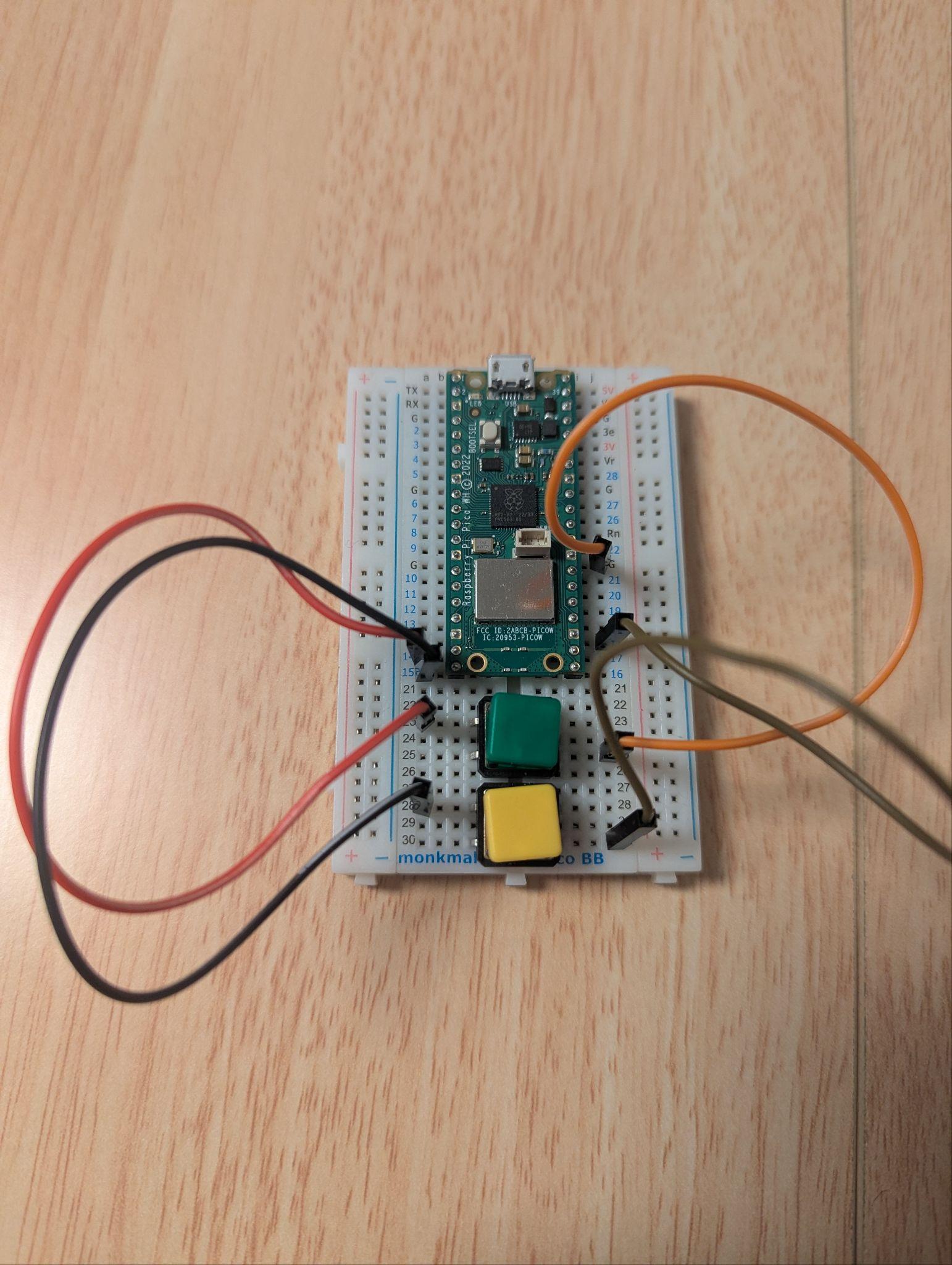
Step 1: Testing Hardware Elements in Thonny
Open Thonny and run these lines interactively to test button inputs:
from picozero import pico_led, Button

# Test the onboard LED
pico_led.on()
pico_led.off()

# Set up Pin 14 button
my_button = Button(14)

# Hook button actions to LED states
my_button.when_pressed = pico_led.on
my_button.when_released = pico_led.off
Step 2: Connecting the Pico to Wifi
Use the network library to hook the Pico up to the internet:
import network
import time

wlan = network.WLAN(network.STA_IF)
wlan.active(True)

ssid = "YOUR_WIFI_NAME"
password = "YOUR_WIFI_PASSWORD"

print("Connecting to Wifi...")
wlan.connect(ssid, password)

while not wlan.isconnected():
    print("Waiting for connection...")
    time.sleep(1)

print("Connected! IP Address:", wlan.ifconfig()[0])
Step 3: Triggering Peerbots Speech on Button Press
Combine Wifi connection and button inputs to trigger expressions programmatically:
import urequests
from picozero import Button

my_button = Button(14)
api_key = "YOUR_API_KEY"
username = "ROBOT_FACE_USERNAME"
url = f"https://api.peerbots.org/v1/send-message/{username}"

def send_intro():
    headers = {
        "Authorization": f"Bearer {api_key}",
        "Content-Type": "application/json"
    }
    payload = '{"message": "Hello! I am ready to help."}'
    try:
        response = urequests.post(url, data=payload, headers=headers)
        print("Sent! Status:", response.status_code)
        response.close()
    except Exception as e:
        print("Send error:", e)

# Trigger send_intro function when button is clicked
my_button.when_pressed = send_intro
[!TIP] Running Independently: To run code without a computer, save your code on the Pico W filesystem with the name
main.py. The Pico will automatically executemain.pywhenever it is powered on by a battery or wall plug.
Task
I wired my breadboard buttons and tested the Pi LED triggersTask
I connected my Pi Pico W to the Wifi networkTask
I successfully triggered robot speech by pressing a breadboard buttonTask
I saved my script as main.py and ran it using a battery/external power
Previous submodule:
2. Explain - Interaction Programming
Next submodule:
4. Examine - Interaction Programming